
How to Convert Images to WebP on Mac
Convert JPEG, PNG, and HEIC images to WebP on Mac using Preview workarounds, command-line tools, or a native batch app that keeps quality and metadata under control.
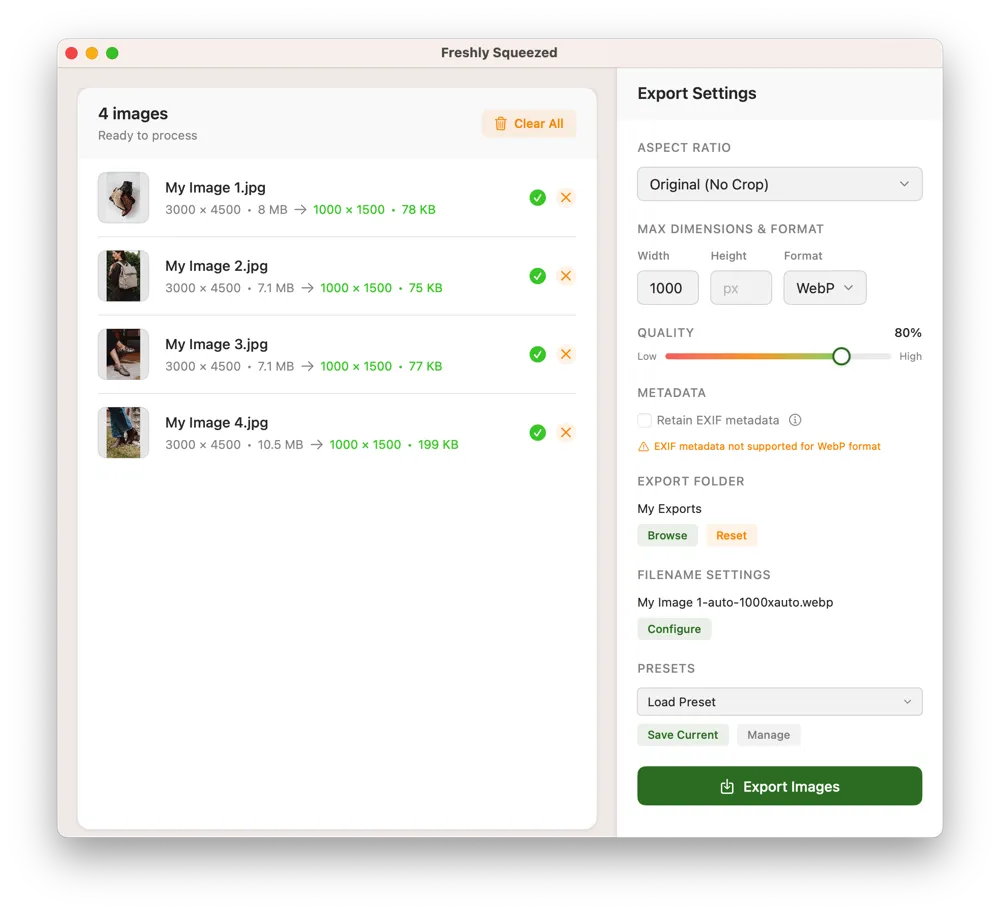
To convert images to WebP on a Mac, export from a tool that writes WebP natively, or batch-convert with an app that supports WebP export. Preview does not offer a direct WebP save option on most macOS versions, so designers usually use a dedicated converter, a CLI tool like cwebp, or a Mac-native batch app.
Why convert to WebP?
WebP typically produces smaller files than JPEG or PNG at similar visual quality, which helps page speed, Core Web Vitals, and bandwidth costs. It supports both lossy and lossless compression, and transparency.
Method 1: Use a Mac-native batch converter
If you convert folders of product or site images regularly, a batch tool is the fastest path:
- Open your converter and add images or a folder.
- Choose WebP as the export format.
- Set quality or compression to match your use case (higher for hero images, lower for thumbnails).
- Optionally resize or crop in the same pass.
- Export. Keep originals until you verify the results.
Freshly Squeezed can batch convert to WebP alongside resize, crop, and optimize presets. See also the WebP converter page.
Method 2: Command line with cwebp
If you prefer Terminal and already use Homebrew:
- Install WebP tools (
brew install webp). - Run
cwebp input.jpg -q 80 -o output.webp. - Script a loop for folders when you need bulk conversion.
CLI is powerful, but quality previews, crop placement, and Drop Folder automation are harder to manage than in a GUI.
Method 3: Online converters
Browser tools work for a few files. For client photos, product catalogs, or private ecommerce assets, uploading to a third-party site can be a privacy risk. Prefer local conversion when images are confidential.
Quality tips
- Start around quality 75-85 for photos; inspect at 100% zoom.
- Use lossless WebP (or PNG) when you need crisp UI graphics.
- Convert after you decide final dimensions so you are not re-encoding twice.
- Decide whether to keep or strip EXIF before publishing.
Why Freshly Squeezed
Freshly Squeezed is a Mac-native batch image app built for real ecommerce and design workflows. Resize, crop, convert, and optimize in one place, save presets (including crop placement), and automate with Drop Folders that process images from the menu bar.
It supports JPEG, PNG, PNG-8, HEIC, WebP, and AVIF. Images stay on your Mac. Pricing is a one-time US$6.99 purchase with a 7-day free trial - no subscription.
 Download for Mac